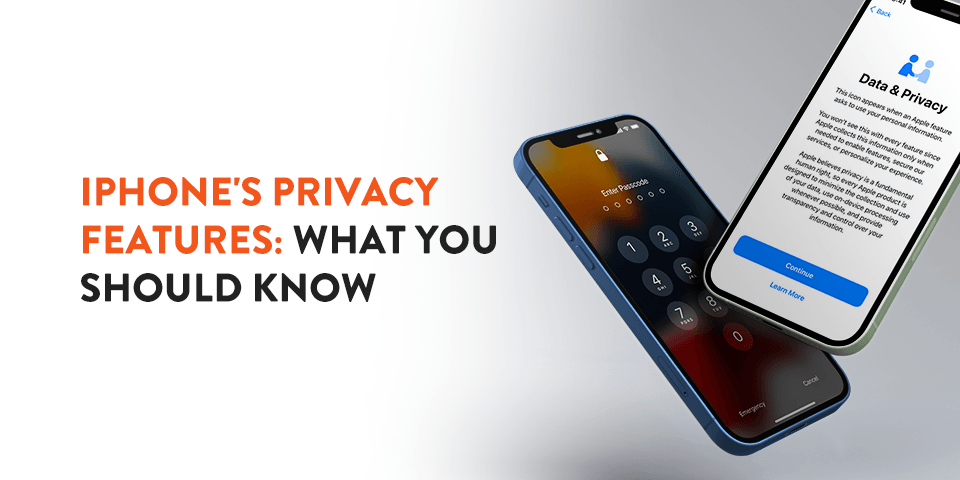

Over the past decade, smartphones have become a staple in our society. These devices allow us to contact friends and family, take pictures and videos, make calls, and access information – not to mention dozens of other capabilities. Because of the information you can store on a smartphone, it matters that your devices have security to keep everything safe. One analysis found that 82.8% of iOS apps track private user data, which makes it more important than ever to take control of your privacy settings.
Apple’s iPhone is one of the most popular smartphones, and that’s also the case for its privacy and security features. Recent updates have continued to raise the bar, from iOS 17.3’s Stolen Device Protection, which prevents thieves from changing your Apple ID or critical security settings, to Apple’s April 2025 patch of a WebKit vulnerability (CVE-2025-30425) that could allow tracking even in private browsing mode. Continue reading to learn about the iPhone privacy features you should enable.

iPhone Privacy and Security Features You Should Be Using
While all Apple devices come outfitted with security features, you might have to enable a few of them to get the full benefits. Here are a few privacy and security settings you should get started with on your Apple iPhone:
App Tracking Transparency
In recent years, users have become increasingly aware of apps tracking our activity. That data is used to advertise products or services on other apps or websites. Many of us have spent some time shopping online just to find similar products advertised to us on social media and other websites. A lot of discomfort surrounds the idea that our apps are always tracking us – and for good reason. One analysis found that 82.8% of iOS apps track private user data in some form.
Luckily for iPhone and iPad users, Apple’s App Tracking Transparency (ATT) framework requires app developers to ask for your permission before tracking your data. When a new app is installed, you’ll be prompted with a message asking for permission to track your activity, which you can accept or deny. It’s worth noting that a striking 95% of iOS users choose not to allow app tracking when this prompt appears – a strong signal of just how much they value their privacy. You can also access the app tracking section of your settings to review what apps currently have permission to track you and disable any you’d like to restrict going forward.
Additionally, Apple’s Privacy Nutrition Labels – displayed on each app’s App Store page – give you a summary of what data an app collects before you even download it. Studies have shown these labels change the download decisions of 94% of users, which makes them a tool for well-educated choices.
Strong Passcodes
Locking our devices with passcodes is one of the main ways we can keep our information safe from prying eyes. iPhone has three different methods to choose from in order to lock your device.
- Touch ID: First, you can use Touch ID, which requires your unique fingerprint to bypass. For accessibility, you can add more than one fingerprint.
- Face ID: Face ID maps out your facial features using various sensors, cameras and a dot projector. Using this method, you can simply place your face in view of your phone’s screen to gain access.
- Password: Finally, you can protect your phone using a passcode. This passcode can either be a series of numbers or a custom alphanumeric code, which is a series of letters and numbers. Using a strong, hard-to-guess pin number or lettered password may be one of the safer methods for protecting your phone from others, since there are some circumstances where someone may use your fingerprint or face to unlock your phone without your consent.
Stolen Device Protection
Apple introduced Stolen Device Protection with iOS 17.3 to help with a growing concern: thieves who learn your passcode before stealing your phone. With this feature enabled, high-value actions – like changing your Apple ID password, disabling Find My, or changing other important security settings – require Face ID or Touch ID biometric authentication and can’t be bypassed with your passcode alone. In some cases, a security delay is also enforced, giving you time to mark your device as lost before any changes can take effect. This feature is a significant step forward in protecting your account even if your passcode is compromised, and it’s worth enabling in your Face ID & Passcode settings.
Two-Factor Authentication
Unfortunately, there are people in every part of the world who will try to access your private information using your Apple ID and password. Thankfully, Apple has come up with an answer to keep your data protected. Only trusted devices can use your Apple ID and password to log in to your account, which means you’ll be the only one who has access. If a new device tries to log in, the user will need your password and a six-digit code that will appear on your trusted devices.
This two-factor authentication feature keeps attackers out of your account since you can reject and block login attempts from unknown devices. Remember that two-factor authentication has to be set up in the Password & Security section of your settings.
Lock Screen Privacy
If someone gets ahold of your iPhone, you can make sure they can’t access features like your Apple Wallet or Siri. To enable iPhone privacy screen settings, head to your “Settings” app and open “Face ID & Passcode” or “Touch ID & Passcode,” depending on your phone. There, you’ll see the option to enable or disable features accessible via your lock screen.
Enable Automatic Updates
Keeping your apps and software updated plays a bigger part in your security than you might know. It may be tempting to put off updates, especially if they take up time or interrupt you in the middle of something. However, updates can contain important security fixes that address real-world vulnerabilities. For example, in April 2025, Apple patched a WebKit vulnerability (CVE-2025-30425) that could allow third parties to track users even while browsing in Private mode – a flaw that could affect anyone running an outdated version of iOS.
Checking for updates on your apps can take some time – but that’s why you can change your settings so updates happen automatically. Go to your settings, find the section labeled “App Store,” and enable automatic app updates. iOS updates usually run on their own by default. But you can always check the Software Update section to confirm, as some updates do need your phone to be plugged in or restarted.
Password Monitoring
When using Safari, you can save your passwords so you can access frequently used websites faster and more efficiently. However, saving passwords does have its own risks, and sometimes passwords can become compromised in a data breach.
Safari monitors your saved passwords to see if they’ve been compromised. If the system detects that your information has been leaked, you’ll get a notification from your device. Then, you can change the potentially exposed password so your data remains protected. You can review these alerts in the Passwords section of your settings.
Limited Photos Library Access
Whenever you try to upload a photo to an app for the first time, you are prompted with a notification asking you if you want to give that app permission to access one photo, a selected set of photos, or your entire photo library. With limited photos library access, you can pick which images an app can use, so your sensitive or private content stays protected. You can also delete photos on your iPhone to further manage what’s stored on your device.
Location Permission Settings
Sometimes we want apps to have access to our location data, and other times we don’t. iPhone’s location permissions allow you to choose which apps are permitted to use your location, and you can allow access just once, only while using the app, or never. You can also revisit and change these permissions at any time in your settings.
It’s also possible to choose if you want to include location information when sharing a photo. If you want to share your location with a friend, you have the option to do so. But if you’re posting that same photo to a public app, you can restrict your location metadata before sharing.
iCloud Backup
System failures happen, and that puts your important information at risk of being lost. To avoid that issue, Apple lets you back up information on iCloud, where it remains encrypted on Apple’s servers. Users may upload their data to iCloud and manage which apps are included in the backup. This guarantees that even if something happens to your device, your data can be restored on a new one.
Auto-Delete Messages
Unless you delete your messages, they can remain on your phone or in the cloud indefinitely. While that can be great for nostalgia, a large volume of stored messages can affect storage and performance. You might also want to delete messages simply to keep your information private.
The good news is that you can auto-delete old messages in your settings. Navigate to “Messages” in your settings, then tap “Keep Messages.” From here, you can keep your messages for 30 days or one year. After your selected time period, your messages will be automatically deleted.
Find My iPhone
Almost everyone has been guilty of misplacing their phone, whether in the crevice of the couch at home or at a restaurant during a night out with friends. Apple has you covered. Enable “Find My” in your settings, which helps you in locating your lost device. This feature lets you see your phone’s exact location on a map and plays a sound so you can find it.
If your device is offline, it’ll show you the last known location when it was connected. Find My also works in conjunction with Stolen Device Protection, which makes it harder for thieves to disable tracking after stealing your phone. Make sure this feature is enabled in your Apple ID settings for the best protection.
Mail Tracking
Did you know that emails are capable of tracking your location? Some senders can get a general idea of your location simply because you’ve opened an email, and can also tell if or when you opened it. Thankfully, your iPhone lets you turn off mail tracking so this information isn’t given away so readily.
All you have to do is go to your settings, find the section titled “Mail,” navigate to “Privacy Protection,” and turn on “Protect Mail Activity.” This will restrict mail tracking and keep your location and reading habits private.
About the iOS 14.5 Update
Apple has made strides in user privacy over the past few years, and iPhone users have more control over their personal data than ever before. One of the most significant changes Apple has introduced is App Tracking Transparency (ATT), which requires apps to ask your permission before tracking your activity across other apps and websites.
When you download or open an app, you’ll be prompted to either allow or deny the app’s ability to collect your data and share it with advertisers. This means that businesses running ads – like social media platforms and search engines – can no longer track your activity for advertising purposes without your explicit consent. The result has been striking: studies show that 95% of iOS users choose not to allow app tracking when this prompt appears, a signal that users value their privacy when given the choice.
The impact on advertisers has been significant as well. Apps with less than 30% ATT opt-in rates lose an average of 58% of their advertising revenue, which has pushed the industry toward more transparent and consent-based data practices. Apple’s Privacy Nutrition Labels – which display what data an app collects before you download it – have influenced the download decisions of 94% of users.
Despite these protections, privacy dangers remain. One analysis found that 82.8% of iOS apps were still found to track private user data in some capacity, which makes it important to stay well-educated and keep your device as up to date as possible. You can also take steps like clearing or blocking cookies on your iPhone to further limit unwanted tracking.
Apple has continued layering in new protections with each iOS release. iOS 17.3 introduced Stolen Device Protection, which prevents thieves from changing your Apple ID or altering key security settings if your device is stolen. And in April 2025, Apple patched a critical WebKit vulnerability (CVE-2025-30425) that could have allowed tracking even while in private browsing mode – a reminder of why keeping your iPhone updated is essential. If you encounter issues after updating, it helps to know about common iOS problems and how to fix them.
On a wider regulatory level, the EU’s Digital Markets Act took effect in March 2024, requiring Apple to allow users in Europe to install third-party app stores and switch default browsers, marking a significant change in how Apple operates in that region.
To make sure that you’re taking full advantage of iPhone’s privacy features, go to Settings → Privacy & Security → Tracking and toggle off “Allow Apps to Request to Track” if you’d like to block tracking requests entirely. You can also review individual app permissions throughout the Privacy & Security section to see what each app has access to. Keeping your iOS version up to date ensures that you’re protected by Apple’s latest security patches as new vulnerabilities are found.
Apple has built a strong reputation for privacy. But how well does the iPhone actually protect your data in 2026? Let’s talk about what the latest research and updates tell us.
App Tracking Transparency (ATT)
Apple’s ATT framework requires apps to ask permission before tracking you across other apps and websites. The results have been striking – 95% of iOS users deny app tracking when the prompt appears. For advertisers, this has been painful: apps with less than a 30% ATT opt-in rate lose an average of 58% of their advertising revenue.
Privacy Nutrition Labels – which show what data an app collects before you download it – have influenced the decisions of 94% of users when deciding whether to install an app; it’s a meaningful shift in how people review software.
Stolen Device Protection
iOS 17.3 introduced Stolen Device Protection, a feature designed to stop thieves from exploiting your passcode. Even if they know your PIN, they can’t change your Apple ID password, disable Face ID, or change critical security settings without a biometric authentication delay when away from familiar locations – this was a significant update for physical device security.
EU Digital Markets Act Changes
Since March 2024, Apple has been required under the EU’s Digital Markets Act (DMA) to allow third-party app stores and alternative browser engines on iPhones within the European Union. While this gives users more choice, security experts have said it also introduces new dangers, as Apple’s strict App Store review process is no longer the sole gatekeeper for EU users.
Recent Vulnerability Patch (2025)
In April 2025, Apple patched a WebKit vulnerability (CVE-2025-30425) that could allow websites to bypass Safari’s private browsing protections and track users without consent – this served as a reminder that no platform is permanently immune to privacy flaws, and keeping your iPhone updated remains one of the most important steps you can take.
The Reality Behind iOS Privacy
Despite Apple’s strong privacy stance, it’s worth mentioning that 82.8% of iOS apps have been found to collect private user data in some form. Apple’s system limits how that data can be shared across apps. But collection within an app’s own ecosystem is still common. Reading Privacy Nutrition Labels before downloading and looking over app permissions is still strongly recommended.
Bottom Line
iPhone has some of the strongest privacy protections available on a mainstream smartphone. But “strong” doesn’t mean “perfect.” ATT, Stolen Device Protection, and fast vulnerability patching are all valuable tools – but staying well-educated and actively managing your settings remains essential. If you’re weighing your options, our guide to the best Apple iPhone model to buy can help you find a device that fits your privacy and performance needs.
Significant iOS 15 Security Updates
Apple has continued to roll out actual security and privacy improvements across recent iOS versions. A few updates include:
- Hiding your IP address in Safari: Every device that connects to the internet has an IP address. Websites can use your unique IP address to track your online activity to build a profile and identity for you. Apple allows iPhone users to mask or hide their real IP addresses in Safari to prevent trackers from accessing their activity – a feature that has been expanded and refined through successive iOS updates.
- App Privacy Report: Whether you know it or not, many of your apps access your phone’s microphone, camera, location, photos and more to collect data that gets sent to advertisers and other third-party services. The App Privacy Report shows you specifically which apps are collecting data, what they’re collecting and where it’s going. Then, you can use this information to adjust your app settings or delete an app altogether. Studies have found that 82.8% of iOS apps track private user data in some form, making this tool especially valuable.
- Mail Privacy Protection: Advertisers use tracking pixels to monitor your interactions with their emails. Tracking pixels provide the sender with information like when and where you opened their message, your IP address and more. Apple gives you the option to disable tracking pixels, keeping your email activity private.
- App Tracking Transparency (ATT): Apps must now ask your explicit permission before tracking your activity across other apps and websites. The impact has been significant – approximately 95% of iOS users choose to deny tracking when prompted. Privacy Nutrition Labels, which display what data an app collects before you download it, have also influenced the app decisions of 94% of users.
- Stolen Device Protection: Introduced in iOS 17.3, this feature prevents thieves from changing your Apple ID or altering critical security settings even if they know your passcode. It requires Face ID or Touch ID authentication for sensitive actions when you’re away from familiar locations.
- WebKit Privacy Vulnerability Patch: In April 2025, Apple patched a critical WebKit vulnerability (CVE-2025-30425) that could have allowed trackers to bypass privacy protections in Safari’s private browsing mode, underscoring why keeping your iPhone updated matters.
To access the latest security features and settings, open your iPhone’s Settings app and make sure your device is running the most recent version of iOS under General > Software Update.
iPhone’s privacy features have become one of its most defining selling points – and the data has proven this too. Let’s talk about what we know as of 2026:
- 95% of iOS users choose not to allow app tracking when the ATT (App Tracking Transparency) permission prompt appears, making it one of the most impactful privacy features Apple has introduced.
- The downstream effect on advertisers is significant – apps with less than 30% ATT opt-in rates lose an average of 58% of advertising revenue. Meanwhile, Privacy Nutrition Labels have influenced 94% of users’ decisions when deciding whether to download an app.
- Apple introduced Stolen Device Protection in iOS 17.3, which prevents thieves from changing your Apple ID or altering critical security settings – even if they know your passcode.
- In March 2024, the EU’s Digital Markets Act took effect, requiring Apple to allow third-party app stores and default browser switching – a significant shift in Apple’s historically closed ecosystem, though Apple has pushed back on several implementation requirements.
- In April 2025, Apple patched a critical WebKit vulnerability (CVE-2025-30425) that could allow websites to bypass privacy protections and track users even in Private Browsing mode – a reminder that no system is entirely immune.
- Despite Apple’s privacy stance, 82.8% of iOS apps were found to track private user data in one analysis, highlighting that Apple’s protections only go as far as developers choose to respect them.
We Know Your Privacy Matters
Apple has long made privacy a cornerstone of the iPhone experience – and it shows. With tough built-in tools, iPhone users can protect personal data stored on their devices, stop apps from accessing their location, and prevent applications from tracking their activity across the web. In fact, since the introduction of App Tracking Transparency (ATT), 95% of iOS users opt out of app tracking when the permission prompt appears – a statistic that goes to show just how much users value their privacy.
Apple has continued to build on these protections with each new iOS release. iOS 17.3 introduced Stolen Device Protection, which prevents thieves from changing your Apple ID or altering key security settings – a big win for physical device security. And in April 2025, Apple patched a WebKit vulnerability (CVE-2025-30425) that could have allowed tracking even in private browsing mode, demonstrating the company’s ongoing commitment to closing privacy gaps as they emerge.
That said, no ecosystem is without its challenges. Analysis has found that 82.8% of iOS apps track some form of private user data, which is why Apple’s Privacy Nutrition Labels – now changing the download decisions of 94% of users – have become an essential tool for making well-informed choices about the apps you install.
With Gazelle, you can shop from a set of refurbished iPhones at an affordable cost. Best of all, we have a 30-day return policy, free standard shipping, financing options and 30-point inspections. Skip the hassle and shop with Gazelle .